Table of Contents
Introduction
ADMX (Adroit Digital MultipleX) is the Adroit Synthesis angle on the computer-controlled stage lighting standard called DMX512. In practice this involves connecting DMX lighting fixtures to your computer then using modules inside Voltage Modular to control them using CV.
This project was based on the idea that sound and light are so closely related that in a modular synthesis setup we should be able to use voltage control of lighting parameters as easily as we use voltage control of sound parameters. Modulations that change sound should be able to change lighting and vice versa in order to bring the two forms of artistic expression closer together.
In the past computer-controlled lighting was rather expensive but modern entry-level DMX fixtures and interfaces have become very affordable, so DMX is worth investigating even if you are on a tight budget.
If you don’t know anything about DMX lighting then there are lots of youtube videos that introduce DMX concepts, however the documentation here doesn’t assume any prior knowledge of DMX.
Getting the ADMX system up and running is not entirely straightforward, so there’s a Guide to Installing ADMX that walks through the installation process in great detail. Also because each lighting rig will vary depending on what lighting fixtures you have available there is inevitable some configuration to do.
However, providing that you are already familiar with the basics of Voltage Modular then you should be able to go from zero to having a basic lighting rig working in an afternoon even if you are completely new to DMX.
If you do get stuck then unlimited email support is available.
This page provides an overview of ADMX and introduces the rig definition and core modules. More specific information can be found in the Guide to Installing ADMX and in the pages for each of the ADMX modules…
Rig definition modules: ADMX Fixture, ADMX Rig Definer
Core modules: ADMX Output, ADMX Color, ADMX Pan & Tilt, ADMX Aux
Processing modules: ADMX Cascade, ADMX Dimmer, ADMX Blend, ADMX Combine
Utilities: ADMX RGB to HSB, ADMX HSB to RGB, ADMX Decoder, 4×4 Knobs
DMX Lighting
Perhaps the two most popular types of DMX lighting fixtures are PAR cans and moving heads.
PAR cans are simple fixed position LED lights that produce a beam of colored light.
Moving heads are similar to PAR cans but the direction of the beam of light can be altered via pan and tilt parameters. You could think of a moving head as a PAR can held by a robot arm.
Some DMX fixtures offer feature such as variable focus, gobos and prisms and these can be controlled in ADMX too (via Aux channels).
At the moment pixel addressable fixtures aren’t supported by ADMX.
DMX lighting is usually controlled by hardware or software lighting controllers. These generally store snapshots of particular lighting settings in scenes and these scenes can be organized into time-ordered lists called chases. Scenes and chases can then be recalled either manually with a button press or automatically sequenced by MIDI.
In contrast ADMX extends the voltage controlled paradigm used in audio modular synthesis to sequencing and modulating lighting parameters. So lighting can be controlled in a similar fashion to sound using control voltages from step sequencers, LFOs, envelope generators, envelope followers and so on, as well as by MIDI.
Color
The most important parameters in DMX lighting are the relative intensities of red, green and blue light. You will almost certainly have already encountered the RGB color model. In practice properly balanced white light is quite difficult to generate from a PAR can or moving head using only red, green and blue LEDs, so additional white LEDs are often incorporated that generate higher quality white light. So you’ll routinely encounter RGBW DMX fixtures.
Extending this idea of color enhancement beyond RGBW, it’s often desirable to be able to generate good quality warm colors that match skin tones and sunlight. Therefore an additional amber channel is provided in RGBA or RGBWA fixtures.
Another enhancement is the provision of an ultraviolet (aka blacklight) capability, so some fixtures have a UV channel too. Therefore you might encounter light fixtures that are described as RGBWAUV.
Handling all these channels individually can be a bit messy so ADMX adopts a hue, saturation, brightness color model (HSB) that automatically adjusts to RGB, RGBW, RGBA, RGBWA or RGBWAUV fixtures.
In the HSB color model hue relates to what most people think of as “color” and is a parameter measured as an angle on a circle.

Red maps to both 0 degrees and 360 degrees as there are 360 degrees in a circle.
Green maps to 120 degrees.
Blue maps to 240 degrees.
So these primary (additive) colors divide the 360 degree hue circle into three parts 120 degrees apart.
Secondary colors appear halfway between the primary colors in the hue circle. So yellow is at 60 degrees, cyan is at 180 degrees and magenta is at 300 degrees.
The hue circle can be further divided with the important angles being amber at 30 degrees and violet at 270 degrees.
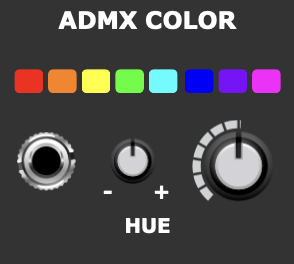
Saturation controls how vivid a color is.
At 100% saturation a color is “pure” while at lower settings more and more white is mixed in to create more pastel colors. At 0% saturation a color is white when brightness is at 100% (lower brightness levels produce a grayscale).
In the color wheel image shown earlier saturation is 0% in the middle of the circle, rising to 100% at the periphery.
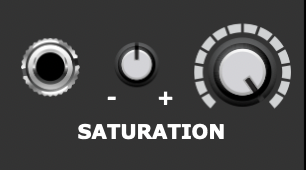
Brightness controls how intense the light is. 100% is maximum brightness, 75% is slightly dimmed, 50% is half intensity and so on. At 0% brightness a light fixture is completely off.
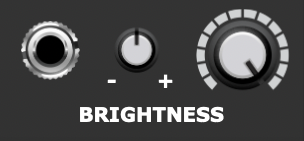
Pan and Tilt
Moving head fixtures have motors that control where their light beam points.
The pan parameter controls horizontal rotation and the tilt parameter controls vertical rotation.
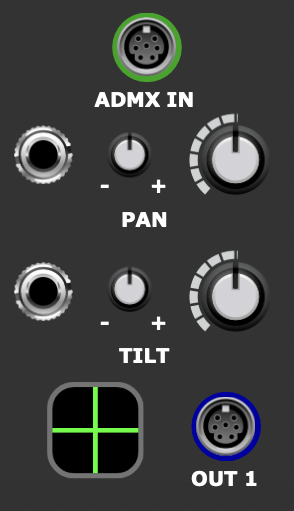
Specific models of moving heads will vary in exactly how these parameters map to physical positions but typically the maximum pan range might be 360 or 540 degrees while the maximum tilt range might be 180 or 270 degrees.
Other Parameters
DMX fixtures vary in the features they offer. Some might have variable focus so that a beam of light can vary from a broad wash to a tight spot. Gobos are elements that interrupt the light beam and introduce a pattern. Fixtures with a gobo feature usually offer a choice of patterns that can be selected by DMX. Prisms split a single beam of light into multiple rays and in DMX there might be control over the rotation of these rays and/or the number of rays.
ADMX doesn’t attempt to support every possible extended parameter explicitly, instead there are four general purpose Aux (auxillary) channels that allow up to four customized parameters to be controlled on top of hue, saturation, brightness, pan and tilt.
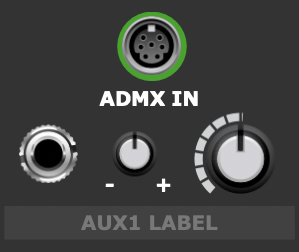
Often fixtures will have a special “dimmer” channel that provides overall control of brightness – something that’s useful on a lighting controller with faders as this allows overall brighness to be adjusted without affecting the color balance (especially when the fixture has multiple channels such as with an RGBWA unit). So although the ADMX brightness parameter provides this functionality, you might sometimes need to use one Aux channel set to maximum value to control the dimmer channel in order to make a fixture work correctly.
Hardware
To control DMX fixtures you will need a DMX interface. The easiest approach is to buy a cheap USB to DMX adapter cable/dongle that has a USB plug at one end and a 3 pin XLR plug at the other. You plug the USB end into your computer and the XLR end into the DMX input of a fixture. It depends on the adapter, but you’ll probably not need to install any driver.
To use more than one fixture you simply connect the DMX output of the first fixture to the input of the next with a DMX cable that has a male 3 pin XLR at one end and a female 3 pin XLR at the other. You can daisy chain up to 32 fixtures this way (although the current version of ADMX is only intended for small to medium size rigs with a maximum of 16 independently addressable fixtures).
Note that high-end DMX kit may use 5 pin XLRs instead of 3 pin.
Individual DMX lighting fixtures have a small display panel and a few buttons (usually labelled MENU, UP, DOWN and ENTER). These enable you to select a channel mode and set the fixture’s DMX starting address.
It’s recommended that the final output of a daisy chain has a DMX terminator attached. This is simply a plug that contains a 120 ohm resistor wired between pin 2 and 3. In a small setup you will usually be able to get away without using a terminator but it’s best practice to use one.

DMX adapters, fixtures, cables and terminators can all be found online for relatively modest sums. If you are new to this then I’d recommend getting entry-level equipment rather than investing in more professional gear. You ought to be able to put together a basic entry-level system for about $100 / €90 / £75 while a pro-level system could cost ten times that. Another thing to consider is the size of fixtures. Entry-level fixtures are generally compact but pro-level moving heads are so large that they might not be practical for small gigs or in a home studio.
Software
To use ADMX you’ll need at least the free Nucleus version of Voltage Modular and the ADMX bundle of modules. You can demo ADMX for free for 14 days to evaluate it. Even if you have no DMX hardware you can get a rough idea of how ADMX works using just the software.
If you’ve never used Voltage Modular then download the free Nucleus version first and play around with it before downloading ADMX.
To interact with lighting fixtures you will need to download and install a free program called QLC+.
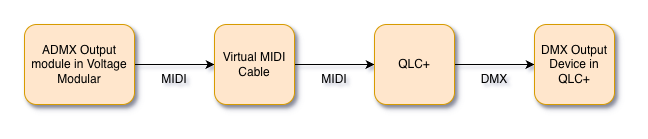
QLC+ is only used to enable Voltage Modular to talk to the DMX interface so you don’t need to understand how it works. All you need to be able to do is open a file and select devices on its Input/Output page. See the Guide to Installing ADMX for full details.
On a Windows machine you’ll also need to download and install a free Virtual MIDI cable utility called loopMIDI so that Voltage Modular can talk to QLC+. While on a Mac you can use the built-in MIDI IAC driver instead of loopMIDI.
The Guide to Installing ADMX page explains how to set up loopMIDI or the MIDI IAC driver.
Defining a Rig
To run a light show you normally launch QLC+, open a file called ADMX.qxw inside QLC+ then launch Voltage Modular with a patch that controls the fixtures via an ADMX Output module.
However, when you first set up or add new lighting fixtures you will need to run Voltage Modular and use an ADMX module called ADMX Rig Definer along with one or more ADMX Fixture modules in order to describe to the system what hardware you are using. This process isn’t particularly complicated and completes with you clicking the EXPORT button on the ADMX Rig Definer module to automatically generate the ADMX.qxw file needed by QLC+.
Let’s look at a basic setup with two RGBW PAR cans of the same type.
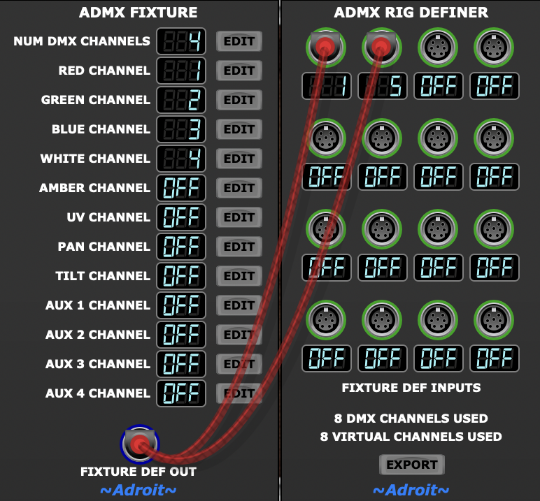
You will find the numbers needed by the ADMX Fixture module in the documentation that comes with every DMX fixture.
In the screenshot above the two red cables carry special S-Poly fixture definition signals. Each input socket on the ADMX Rig Definer module represents a potential hardware fixture and as we are using two of them we are telling the system that our rig consists of two fixtures. The numbers displayed beneath these sockets are the DMX start addresses that you’ll need to physically set on the corresponding fixtures.
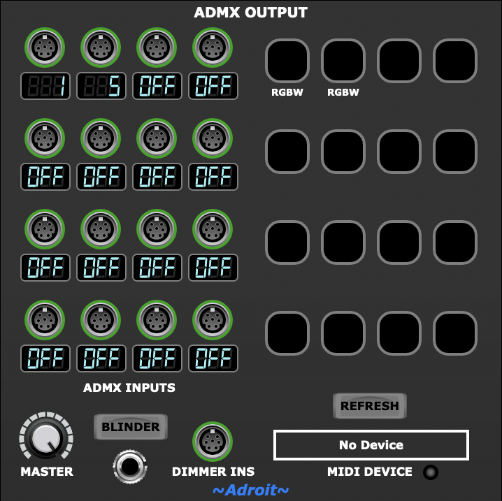
There is a direct correspondence between the 16 FIXTURE DEF INPUTS of the ADMX Rig Definer module and the 16 ADMX INPUTS of the ADMX Output module. So after the EXPORT button is pressed on the ADMX Rig Definer module in the example above, the ADMX Output module will automatically update to show the same configuration…
Controlling a Rig using ADMX Output
Once you’ve defined a rig and clicked on the ADMX Rig Definer’s EXPORT button then the ADMX Rig Definer and ADMX Fixture modules are no longer required as the actual control of the fixtures is done via the ADMX Output module.
As discussed earlier, ADMX uses QLC+ to talk to the DMX fixtures so you’ll need to have QLC+ running in the background with the ADMX.qxw file loaded. If you’ve loaded the file before there will be a shortcut option in QLC+’s Actions menu so it should only takes a few seconds to launch QLC+, load the file and minimize QLC+’s window so that it’s out of the way. Then all the action is focused on a patch in Voltage Modular with an ADMX Output module acting as the conduit for controlling the rig.
To complete the configuration we need to select the virtual MIDI cable that’s connected to QLC+ as the MIDI DEVICE on the ADMX Output module. On a Mac this will usually be called Bus 1 while on a Windows machine it will usually be called loopMIDI Port.
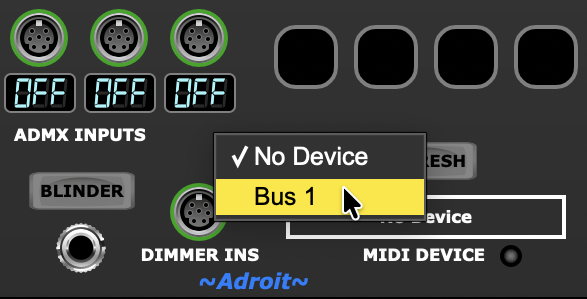
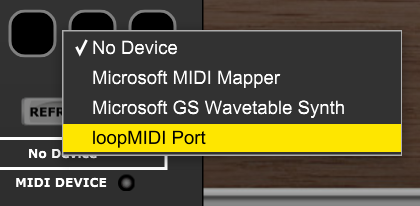
Let’s assume you exported the rig definition described earlier with two RGBW PAR can fixtures. The patch below shows how a pair of ADMX Color modules can then be connected to the ADMX Output module so that the HSB values of the two DMX fixtures can be controlled by the HUE, SATURATION and BRIGHTNESS knobs (or control voltages).
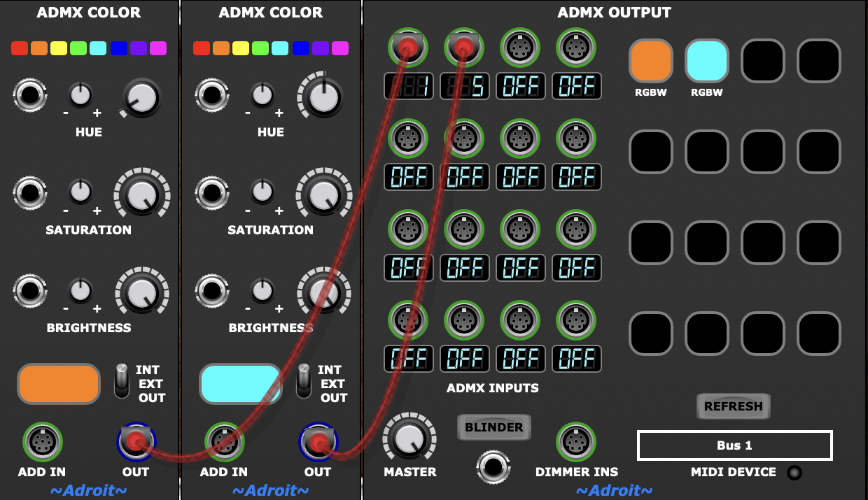
The cables in the image above carry a special type of S-Poly signal called the ADMX signal. It has nine channels – Hue, Saturation, Brightness, Pan, Tilt, Aux 1, Aux 2, Aux 3 and Aux 4. In this example only the Hue, Saturation and Brightness channels are being used.
Behind the scenes the ADMX Output module translates the HSB information into RGBW and transmits this data as MIDI messages to QLC+ via the loopMIDI or IAC virtual MIDI cable. QLC+ then translates the MIDI data into DMX512 data that is sent to the light fixtures via the USB to DMX adapter. This might sound a bit convoluted but it all happens automatically and with very little overhead.
Adding a Moving Head
Let’s look at how to add a moving head fixture to our example rig.
First we need to add another ADMX Fixture module to our rig definition patch…
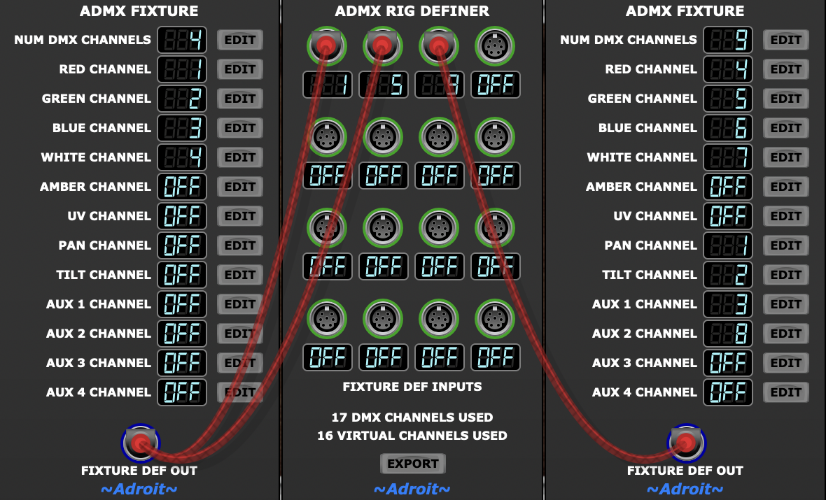
The ADMX Fixture module on the right defines which channels are used by a particular moving head fixture. The numbers are taken from the documentation that came with the fixture.
We add the fixture to the daisy chain using another DMX cable and set the moving head’s start address to 9 using its physical buttons and little display. The moving head’s start address is 9 because one of the PAR cans uses channels 1, 2, 3 and 4 and the other uses channels 5, 6, 7 and 8 so the ADMX Rig Definer module calculates that 9 is the next free channel.
When the EXPORT button is pressed the ADMX.qwx file is updated and we can load it in QLC+.
We can then expand the Voltage Modular patch that controls the lights as shown below…
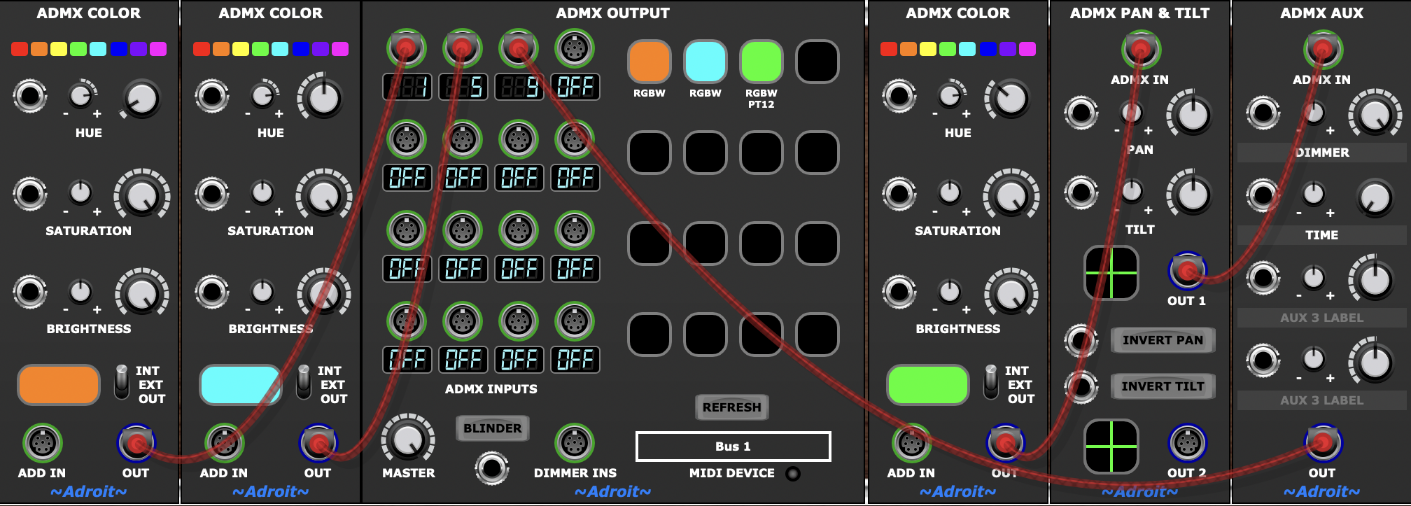
The cable connected to the third input of the ADMX Output module carries the ADMX signal that controls the moving head fixture.
As you can see we’ve added ADMX Color, ADMX Pan & Tilt and ADMX Aux modules to the right of the ADMX Output module.
The ADMX signal from the new ADMX Color module passes through the ADMX Pan & Tilt module where Pan and Tilt parameters are added. Then the signal passes through the ADMX Aux module where the Aux 1, 2, 3 and 4 parameters are added.
We’ve changed the user-editable label for Aux 1 to DIMMER and the label for Aux 2 to TIME to help us remember what fixture parameters are affected.
DIMMER (Aux 1) controls channel 3 on the fixture which is the fixture’s dimmer channel. The knob is set to maximum so that the fixture’s dimmer is always fully open. The actual brightness of the fixture is controlled by the brightness parameter of the ADMX Color module (which is translated into changes in RGBW levels).
TIME (Aux 2) controls channel 8 on the fixture which is the fixture’s pan and tilt velocity channel. The knob is set to minimum so that the fixture’s pan and tilt motors operate at their fastest speed.
Note that it would still work if we wired up the modules in a different order such as ADMX Color -> ADMX Aux -> ADMX Pan & Tilt as each module simply passes on the input values of channels that it isn’t interested in.
There are other features in ADMX (and more modules are in the pipeline) but we’ve now covered all the basics.
For a detailed walkthrough of the steps required to install and test ADMX see the Guide to installing ADMX.
Remember, if you get stuck then email support is available – see the contact section of this website.
Light Show Checklist
- Run QLC+ and load the ADMX.qxw file
- Run Voltage Modular with a patch including an ADMX Output module
- Ensure that the ADMX Output module’s MIDI DEVICE is set to loopMIDI Port or Bus 1
- Control the fixtures with ADMX signals sent to the ADMX Output module’s ADMX INPUTS