Table of Contents
Basic Operation
This module lets you control DMX lighting fixtures in a rig that was previously defined using an ADMX Rig Definer module along with one or more ADMX Fixture modules.
See the ADMX overview page for an introduction to the system and a description of the rig defnition process.
Up to 16 independently addressable fixtures can be controlled by ADMX signals fed to the module’s ADMX INPUTS.
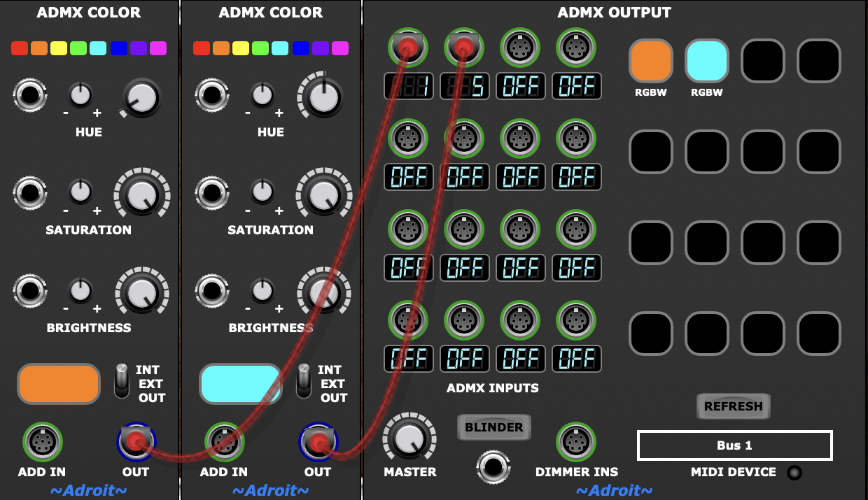
More than 16 physical fixtures can be used if some of them share the same DMX start address but such fixtures will duplicate the actions of any fixtures with the same start address.
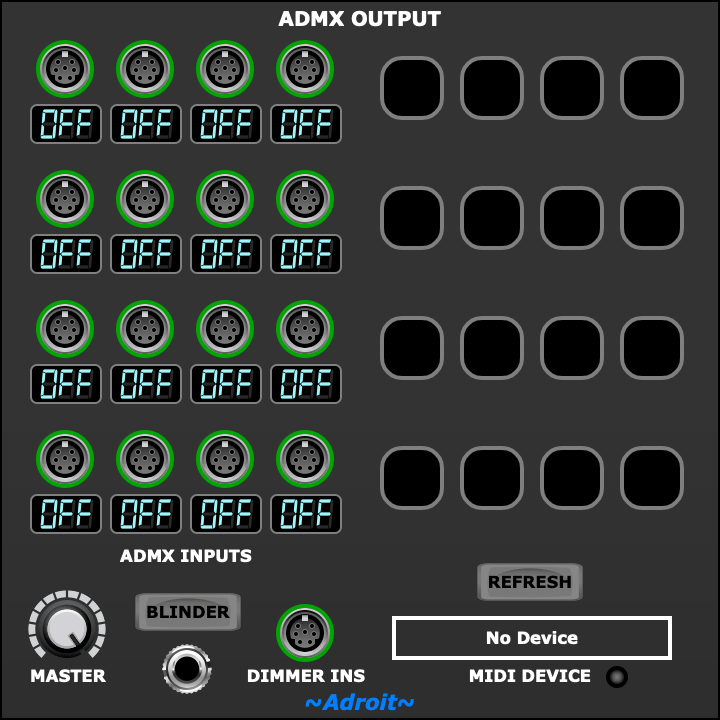
The little display beneath each of ADMX INPUT socket shows the DMX start address of the corresponding fixture. After an export these displays will be identical to those of the ADMX Rig Definer module.
If the corresponding FIXTURE DEF INPUT on the ADMX Rig Definer module wasn’t connected to an ADMX Fixture module when the EXPORT button on the ADMX Rig Definer was last pressed then the display will indicate OFF.
It’s important that the DMX start addresses of your physical fixtures are set to the start addresses shown otherwise the fixtures will misinterpret the DMX commands sent to them. So in the simple example above one of your PAR cans should be set to address 1 and the other to address 5.
The 4 x 4 array to the right of the ADMX INPUTS shows a preview of the colors displayed by the fixtures. Beneath any of the previews that are defined there will be a string of letters showing the capabilities of that fixture according to the rig definition. So for instance an RGBW PAR can will have RGBW beneath its preview.
MIDI Device
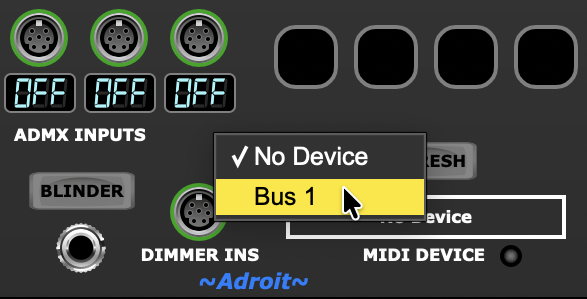
To function correctly, the ADMX Output module must communicate with QLC+ via a virtual MIDI cable. Click on the MIDI DEVICE selector to choose the virtual MIDI cable. On MacOS this will usually be called Bus 1…
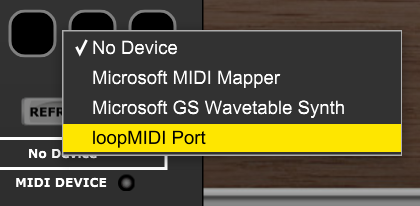
On Windows the virtual MIDI cable will usually be called loopMIDI Port…
Master Dimmer
In the bottom left of the module there’s a knob labelled MASTER that gives you control of the overall brightness of the rig. This is normally set to 100% but you can use this knob to fade in or fade out the lighting or to adjust the brightness to taste.

During a live gig you’ll usually want maximum brightness but in a home studio setting at night you might want a more subtle effect, so it’s handy to be able to turn everything up or down with a single knob.
To do a blackout turn the knob fully counter clockwise (CCW).
One thing to remember if your lighting doesn’t seem to be working is to check whether the MASTER knob is turned fully CCW.
Dimmer Ins
The DIMMER INS socket gives you the option to dim individual fixtures independently of what’s happening with their ADMX signals.
When nothing is connected to the socket then each fixture’s virtual dimmer is set at 100% but if you plug in a S-Poly signal then each of the S-Poly channels controls a virtual dimmer. The control voltage range is 0 V to 5 V.
The 4×4 Knobs module is included in the ADMX bundle to allow you to use this foptional acility.
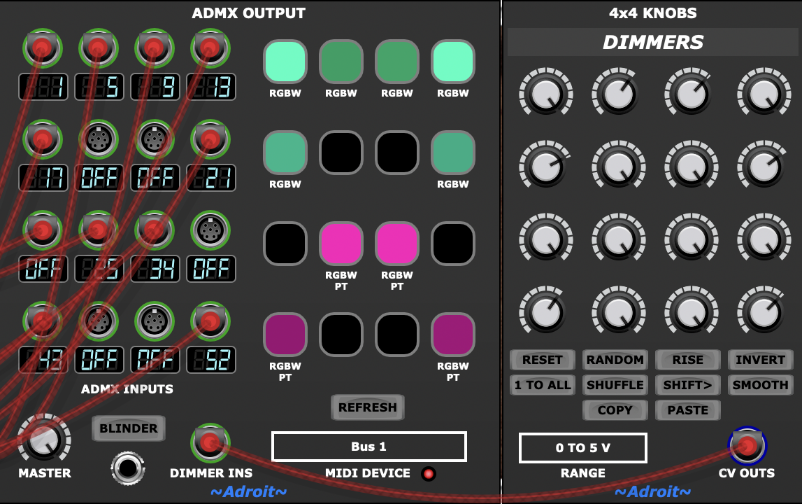
4×4 Knobs will be part of a bundle called Adroit 4×4 which is still in development, to use it in this application set its RANGE to 0 to 5 V (which is in fact its default setting).
You can use the right-click MIDI Learn function of the knobs to enable them to be controlled by MIDI CC, so it’s possible to emulate a traditional fader desk if you have a MIDI controller with lots of sliders.
Blinder Function
There are specialized DMX fixtures called “blinders” that are bright white lights pointed directly at the audience. They are usually only used for very short periods to illuminate the audience at some climatic moment. They might also be used as a strobe effect on a dance floor to briefly make people look like they are moving in slow motion.
The BLINDER function in ADMX Output isn’t intended for controlling specific blinder fixtures but can be used to produce a similar effect.
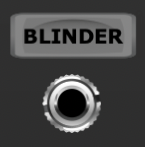
When the BLINDER button is pressed, or the socket beneath it is fed a high gate, then all channels on all fixtures will iluminate at 100%. This produces a much brighter light than normally possible with fixtures that have white, amber or UV channels as it bypasses the regular color space conversion.
This function is also useful for quickly checking that all your fixtures are working during a lighting test.
Note that if the MASTER knob is set fully CCW then the blinder function is disabled.
Cache Refresh
To reduce overheads ADMX Output only sends MIDI messages to QLC+ when a parameter changes.

Previous values are stored in a cache memory but on rare occasions this caching mechansim might get out of sync therefore a REFRESH button is provided that clears the cache and forces all the values to be resent.
Troubleshooting
Usually ADMX is trouble free but there are a lot of components that need to work together so inevitably you’ll occasionally run into problems.
If at all possible never attempt to change your rig 10 minutes before a gig.
Take photos of your fixture’s documentation tables so that you can always refer to them even when away from base.
If you are new to ADMX then work methodically through the Guide to Installing ADMX. Even if you are well passed the installation stage, the troubleshooting section of the Guide can be useful.
Try reloading QLC+ and Voltage Modular.
If nothing works then concentrate on a simple case scenario such as getting a single PAR can to light up. Don’t try to debug a complex rig and a complex patch at the same time. Eliminate as much as possible and work backwards from the fixture.
If a PAR can works but a moving head doesn’t then it might be that the fixture has a dimmer channel that’s set at zero. Check the fixture’s documentation and make sure an Aux channel is assigned to the dimmer channel in your rig definition. Then make sure there’s an ADMX Aux module somewhere in the signal path that’s setting the dimmer channel to max.
Sometimes the firmware in a fixture gets confused so try powering it down and back up and checking that the ADMX address and channel mode are set correctly. Some fixtures will have a reset fuction in their menu too.
Sometimes everything fails but doing a full reboot of your computer will fix things.
If you are still stuck then email support is available – see the contact page.