Table of Contents
Introduction
The ADMX system consists of various software and hardware components so getting everything up and running isn’t as straightforward as trying out a new oscillator or filter. This page therefore walks through the whole process in considerable detail. There are also a couple of checklists at the bottom of the page that might be useful.
If you get stuck then support from Adroit Synthesis is available via the email account shown in the contact section of this website, also general support for issues with Voltage Modular is available via Cherry Audio’s help portal.
Getting Started
The following assumes that you have read the ADMX overview page.
Make sure that you have Voltage Modular installed and working. You only need the free Nucleus version to use ADMX although it’s highly recommended that you eventually upgrade to the Core version.
You’ll then need to download the ADMX bundle into your Voltage Modular Library, this usually happens automatically when you run Voltage Modular. You can use the demo version of ADMX for 14 days for free. Once you have the ADMX bundle installed then click on the button below to download a simple preset file called StartPatch.voltagepreset.
Opening the file should result in Voltage Modular showing you the patch below…
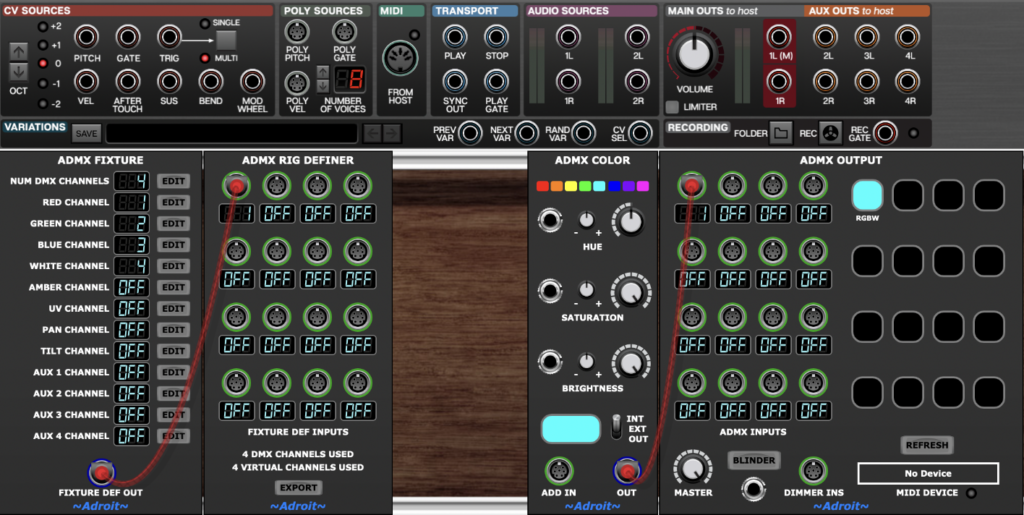
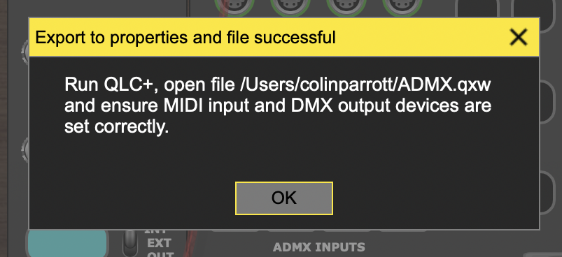
Click on the EXPORT button on the ADMX Rig Definer module to create the ADMX.qxw file that we will need later. You should get a message saying that the export was successful…
If you adjust the large knobs on the ADMX Color module then you should see the on screen color previews changing but we don’t have any connection to the outside world yet.
Basic Hardware
To get something happening in the outside world you will need at least one DMX fixture. If you are starting out then I’d recommend buying a small budget RGBW PAR can as your first fixture. You’ll also need a USB to DMX adapter cable. There’s no need to spend a fortune here, if you shop around then about $50 / €45 / £38 should easily get you both a PAR can and an adapter from an online retailer.
For an initial test with a single fixture you don’t need an XLR cable as the USB to DMX adapter cable will plug directly into the PAR can and you won’t really need a DMX terminator either.
Plug the USB end of the USB to DMX adapter cable into your computer either directly or through a USB hub then plug the XLR end into the DMX IN socket of your RGBW fixture.
Power up the fixture. By default the fixture should have a DMX start address of 1. This is usually indicated on a 4 digit 7-segment LED display by d001. If you’ve changed this then set the address back to 1 using the instructions provided with the fixture. It will also very probably default to a 4 channel mode. If not then again check the documentation that came with the fixture and set it to 4 channel mode (or the mode with the lowest number of channels if there isn’t a 4 channel mode).
A fixture’s settings are almost always changed by MENU, UP, DOWN and ENTER buttons in conjunction with a 4 digit LED display. There will likely be all kinds of functions in the fixture’s menu but the start address and the channel mode are the most important.
After adjusting a setting with the UP and DOWN buttons, pressing the ENTER button should make a fixture store the setting in non-volatile memory.
Installing QLC+
ADMX uses version 5 of QLC+ to communicate with DMX fixtures.
This adds a little complexity to the setup but it means that the full range of DMX interfacing mechanisms are available and the ADMX Output module doesn’t have to deal with any of the potential problems of device drivers.
QLC+ is a sophisticated open source OS independent DMX lighting controller but we are using only a tiny fraction of its capabilities. You might want to explore its facilities in more depth but here we only cover the basics required by ADMX.
QLC+ is free but If you use ADMX in a commercial setting or just want to support an awesome project then please consider donating to the QLC+ developer via this link.
Download QLC+ 5 for Windows or MacOS (Intel 64 bit or Apple Silicon) via this link.
Installation follows standard procedures and is straightforward.
Setting up a Virtual MIDI Cable
As shown in the diagram below Voltage Modular communicates with QLC+ via a virtual MIDI cable.
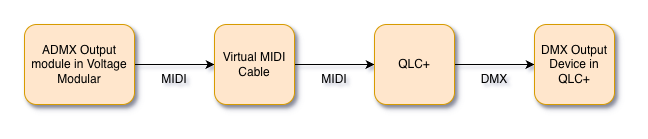
On Windows we use the free loopMIDI utility as our Virtual MIDI cable.
Click on the green “download loopMIDI” text in the top right of the page linked here to download the program.
In the installation dialog you have the option to autostart loopMIDI. I use ADMX frequently so leave the Autostart loopMIDI when logging in option checked but you might prefer to manually start the program instead.
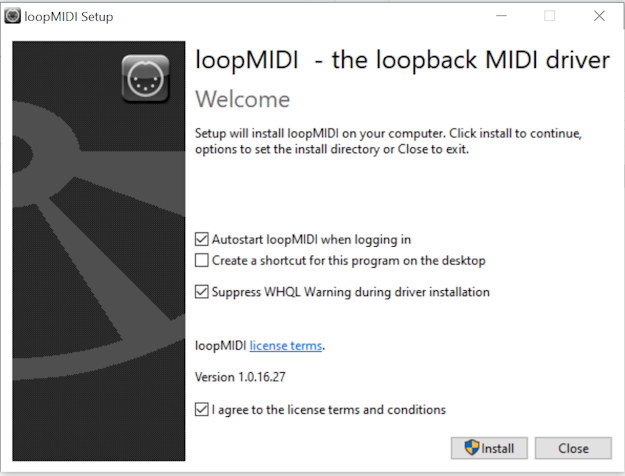
When loopMIDI launches it displays the following window….
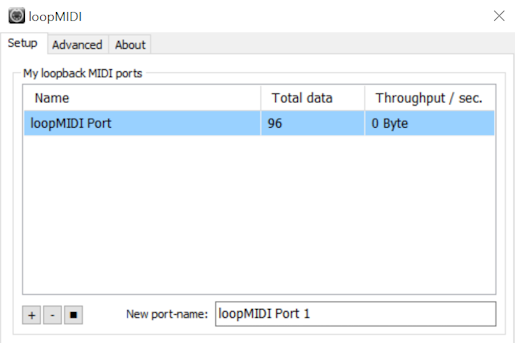
By default the program creates a virtual MIDI cable called loopMIDI Port so there’s no need to create a new port and you can just close the window using the X in the top right of the window.
LoopMIDI is free for non-commercial use but a donation can be made to the developer via the program’s about page.
On MacOS we use the MIDI IAC driver instead of loopMIDI. This is disabled by default and rather hidden away so you need to do the following to enable it…
1: Use ⌘ + spacebar to open Spotlight and find Audio MIDI Setup.
2: Select Show MIDI Studio from the Window menu in the top of screen menubar.
3: Double click on the IAC Driver icon.
You should eventually arrive at the following dialog…
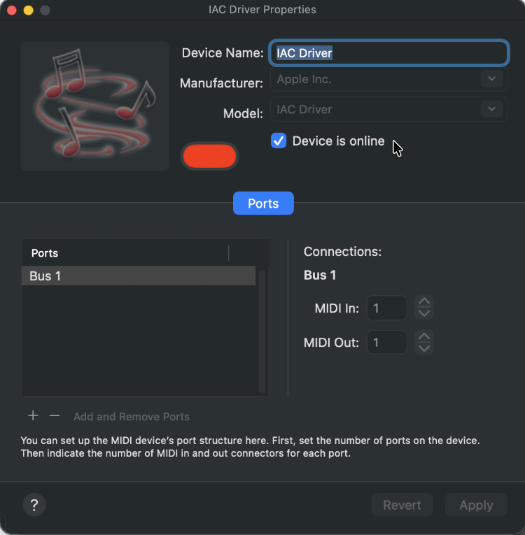
4: Select the “Device is online” element to make sure the tick is present.
By default this will activate a virtual MIDI cable called Bus 1 so there’s no need to create a new port.
Setting the Input and Output Devices in QLC+
We need to tell QLC+ that it will receive input from the Virtual MIDI cable and that it should send output to our USB to DMX adapter.
Launch QLC+.
You should see something like this at the top of the QLC+ window…

Click on the Actions icon and select Open file from the drop-down menu, then navigate to your home folder and select the ADMX.qxw file that you created earlier by clicking on the ADMX Rig Definer module’s EXPORT button.
Next click on the Input/Output icon to go to QLC+’s Input/Output page…
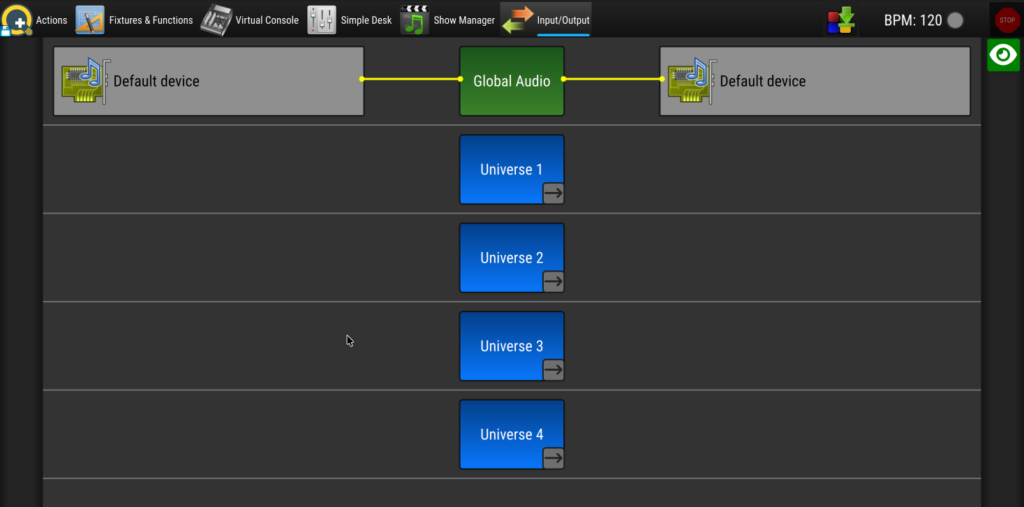
Click on the blue Universe 1 element to select Universe 1. Arrow icons will appear on both sides giving options to show the input and output devices for Universe 1.

Click on the arrows icon on the left side to reveal the input options.
On a Windows machine the input options might look something like this…
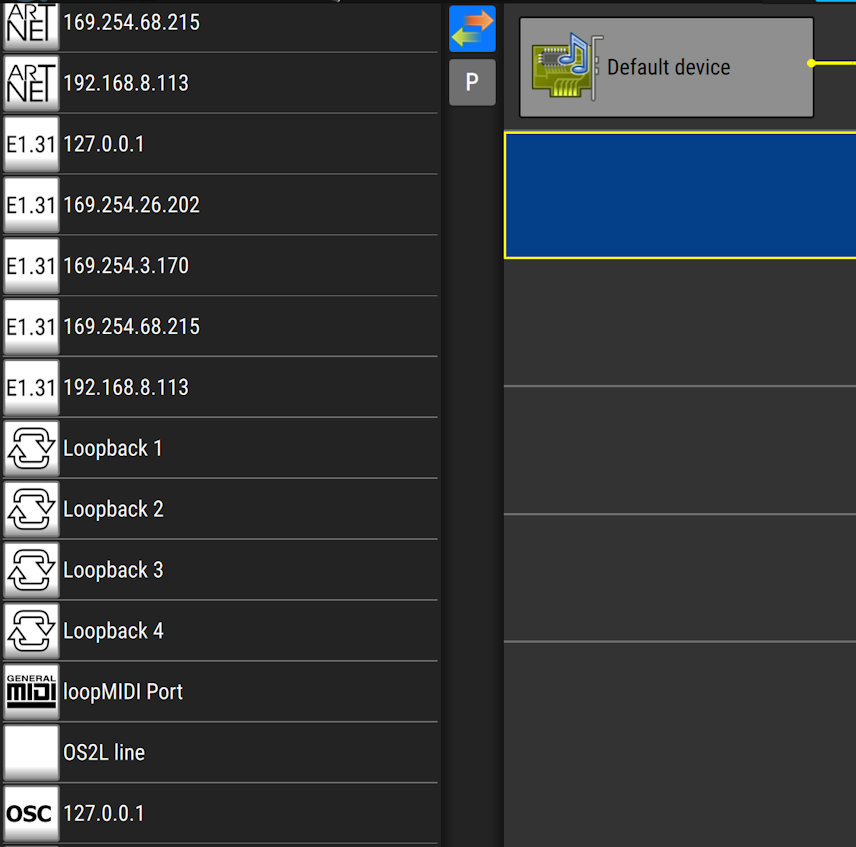
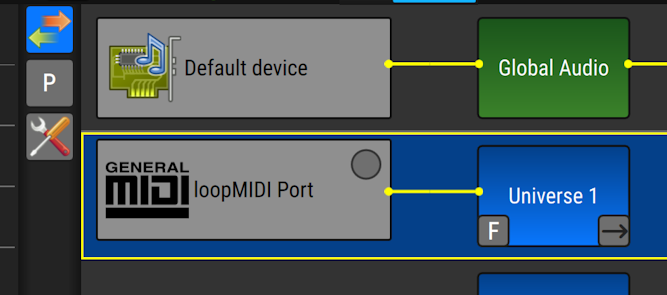
Providing that you successfully installed and launched loopMIDI you should see it as an option. Drag the General MIDI loopMIDI Port icon to the left side of Universe 1.
Here’s what the input options might look like on a Mac…
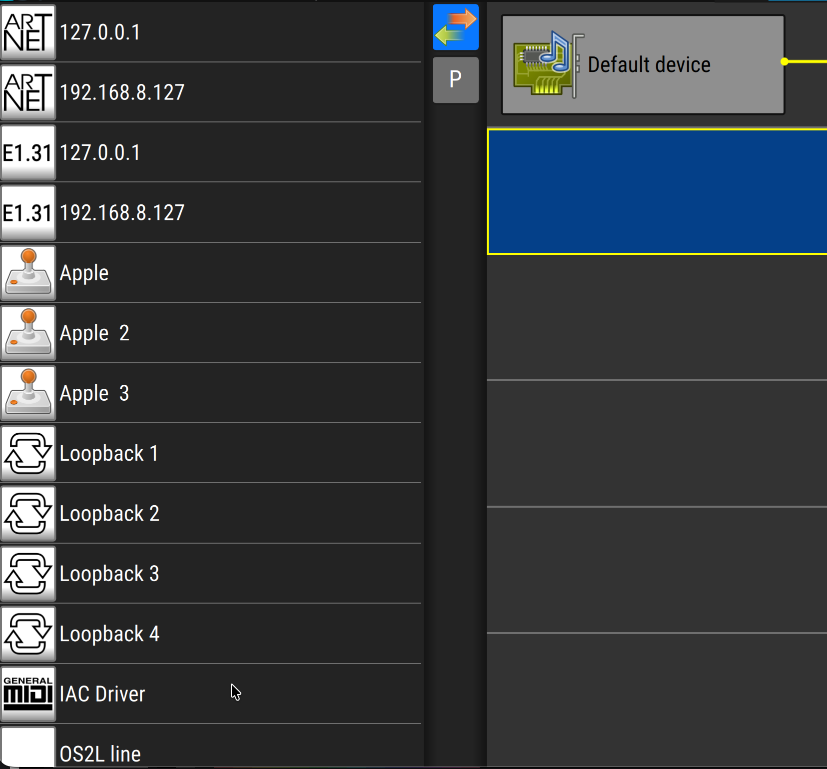
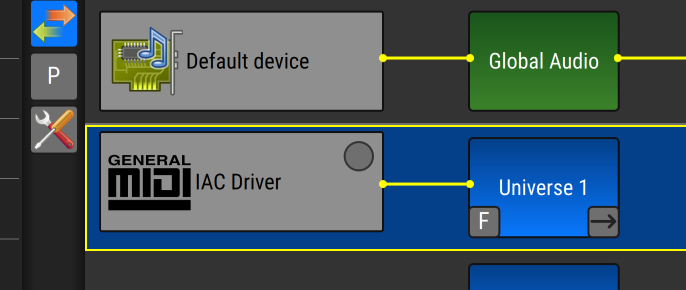
Providing that you successfully enabled the MIDI IAC Driver you should see it as an option. Drag the General MIDI IAC Driver icon to the left side of Universe 1.
To select a QLC+ output device on either Windows or MacOS, click on the arrows icon on the right side to reveal the output options…
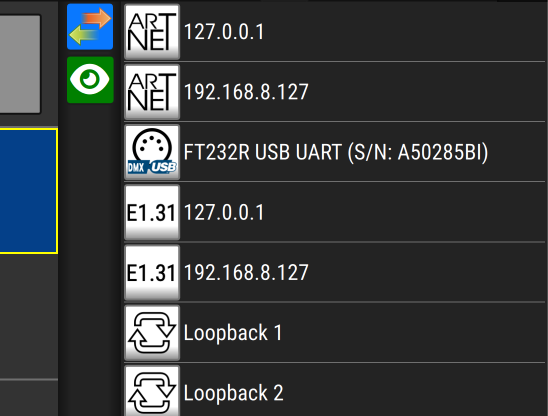
The USB to DMX adapter that I uses is visible here as FT232R USB UART. If you have a different adapter it will be labelled as something else but the icon showing a 5 pin XLR with DMX and USB text should be the same.
Drag this to the right of Universe 1.
You should end up with something like this…

As both input and output devices are now selected, click on QLC+’s Action icon in the top left and select Save project to update the ADMX.qxw file.
QLC+ usually remembers the input and output settings so even when you overwrite the ADMX.qxw file by clicking on ADMX Rig Definer’s EXPORT button (to modify your rig setup) you hopefully shouldn’t need to repeat this configuration. But if you end up with the wrong input or output device selected you can drag it out of Universe 1 to a waste bin icon at the bottom of the window.
Having completed all the steps above the ADMX system should be fully installed.
Running a Test
We can now test the installation using the Start Patch we downloaded earlier.
If you quit QLC+ after the installation then launch it again and reload the ADMX.qxw file (there should now be a shortcut for this in the Actions menu).
If you quit Voltage Modular then launch it again with the Start Patch.
In Voltage Modular click on the MIDI Device selector in the bottom right of the ADMX Output module and select the virtual MIDI cable. This should be labelled loopMIDI Port on a Windows machine and Bus 1 on a Mac.
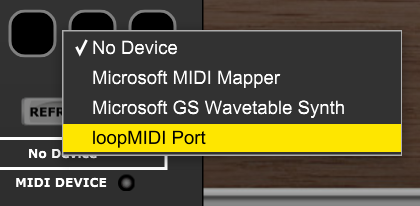
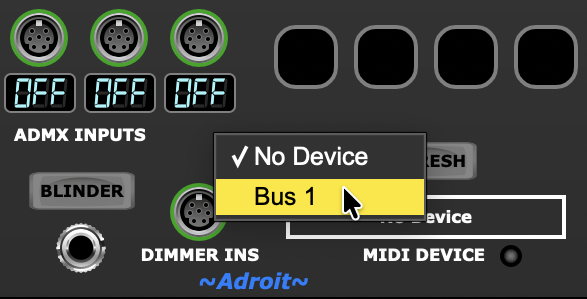
The DMX lighting fixture should then respond to any adjustments of the HUE, SATURATION and BRIGHTNESS knobs on the ADMX Color module.
Troubleshooting
loopMIDI Port or IAC Driver not appearing in QLC+ input device menu
On Windows loopMIDI not installed or running
On MacOS MIDI IAC Driver not enabled
Quit QLC+, ensure the virtual MIDI cable is correctly installed/enabled, relaunch QLC+
USB to DMX adapter not appearing in QLC+’s output device menu
Adapter not plugged in or needs a device driver
Quit QLC+, ensure the adapter is plugged in and check to see whether a device driver needs to be installed, relaunch QLC+
loopMIDI Port or Bus 1 not appear in ADMX Output‘s MIDI Device menu
On Windows loopMIDI not installed or running
On MacOS MIDI IAC Driver not enabled
No response from the PAR can
LoopMIDI or Bus 1 not selected as ADMX Output’s MIDI Device
Fixture not powered up and connected to the computer via the USB to DMX adapter
Fixture’s DMX start address not set to 1
Fixture not in 4 channel mode
QLC+ not running
ADMX.qxw not loaded in QLC+
QLC+ Universe 1 input not assigned to loopMIDI or IAC Driver
QLC+ Universe 1 output not assigned to USB to DMX adapter
MASTER knob on ADMX Output set fully CCW
Unexpected colors from PAR can
Fixture not in 4 channel mode
Incorrect channel assignments – check fixture documentation and adjust the channel numbers in the ADMX Fixture module to match then click EXPORT on the ADMX Rig Definer module and reload ADMX.qwx in QLC+
MASTER knob on ADMX Output module not fully CW
BLINDER gate signal on ADMX Output module stuck high
Installation Checklist
- Make sure that Voltage Modular is installed and working
- Download the ADMX bundle into your Voltage Modular library
- Download the Start Patch from this page and run it in Voltage Modular
- Click on the ADMX Rig Definer’s EXPORT button.
- Download and install QLC+
- On Windows download and install loopMIDI
- On MacOS enable the MIDI IAC driver
- Plug your USB to DMX adapter into your computer
- Connect your USB to DMX adapter to your lighting fixture
- Ensure that the DMX start address of the fixture is 1 and that the fixture is in 4 channel mode
- Run QLC+ and open the ADMX.qxw file
- Set QLC+’s Universe 1 input device to loopMIDI or IAC Bus 1
- Set QLC+’s Universe 1 output device to your USB to DMX adapter
- Save the ADMX.qxw file
Light Show Checklist
- Run QLC+ and load the ADMX.qxw file
- Run Voltage Modular with a patch including an ADMX Output module
- Ensure that the ADMX Output module’s MIDI DEVICE is set to loopMIDI Port or Bus 1
- Control the fixtures with ADMX signals sent to the ADMX Output module’s ADMX INPUTS